
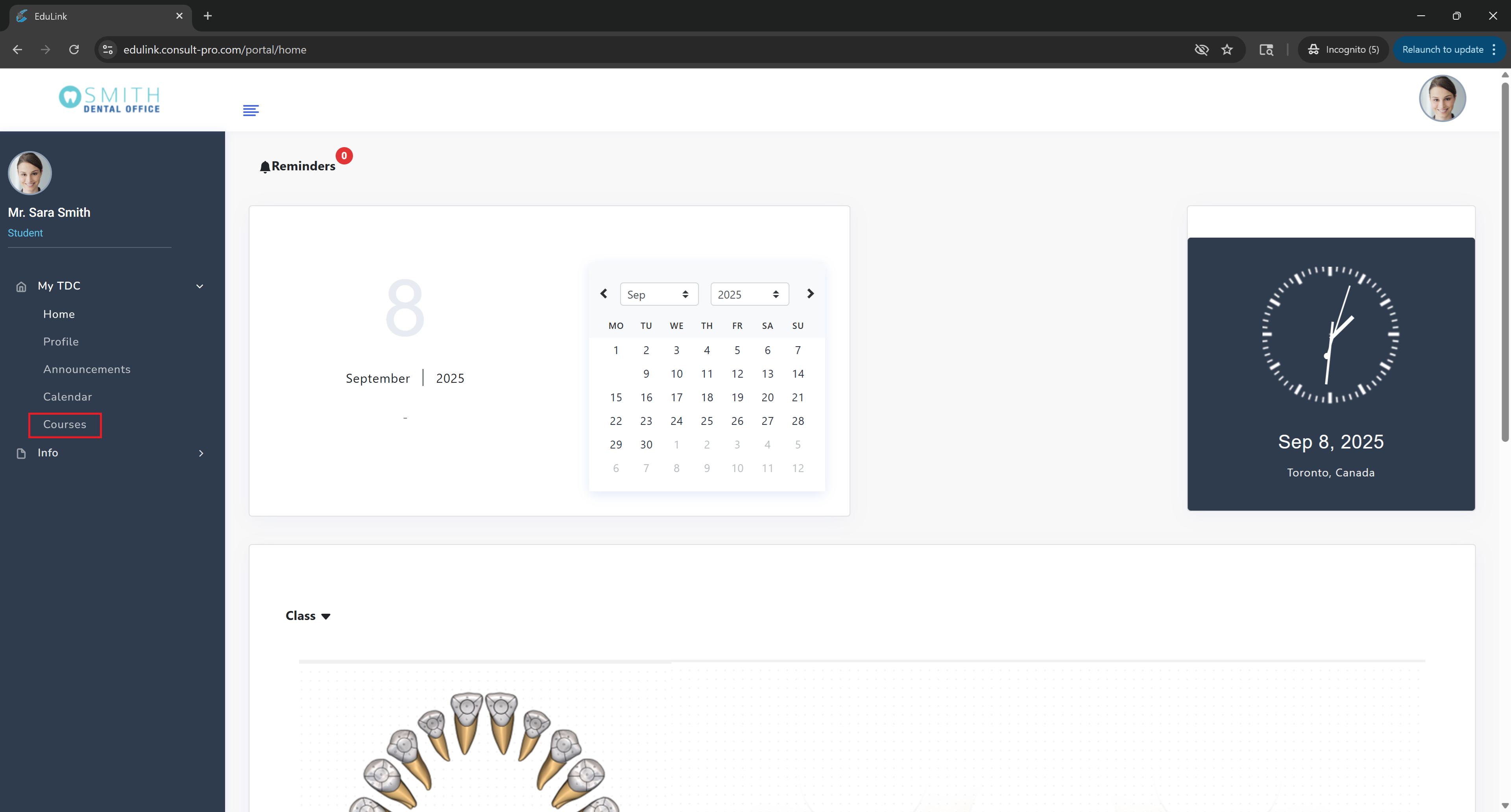
Step 2: Navigate to Courses
Expand "My Dashboard" and click on "Courses" to see your enrolled courses
Step 3: Select Your Course
Choose the specific course you want to submit an assignment for

Step 4: Access Assignments
Click on "Assignments" to view all your course assignments and click "Submit" under the assignment you want to submit

Step 5: Complete Submission
Enter a comment, upload your file by clicking "Upload a file", and then click "Submit" to complete your assignment submission

💡 Pro Tip
Make sure to review your assignment before submitting. You can upload multiple file types including PDF, Word documents, and images. Always add a meaningful comment to help your instructor understand your submission. Keep track of due dates to avoid late submissions!